Complete Guide to Custom QR Codes: Design, Branding, and Best Practices
Learn how to create custom QR codes with logos, colors, and frames. Complete guide to branded QR codes, design tips, and customization best practices for businesses.
Custom QR codes go beyond basic black and white patterns. They incorporate your brand identity through logos, colors, frames, and design elements, making them more engaging and professional. This comprehensive guide covers everything you need to know about creating custom QR codes that reflect your brand while maintaining scannability.
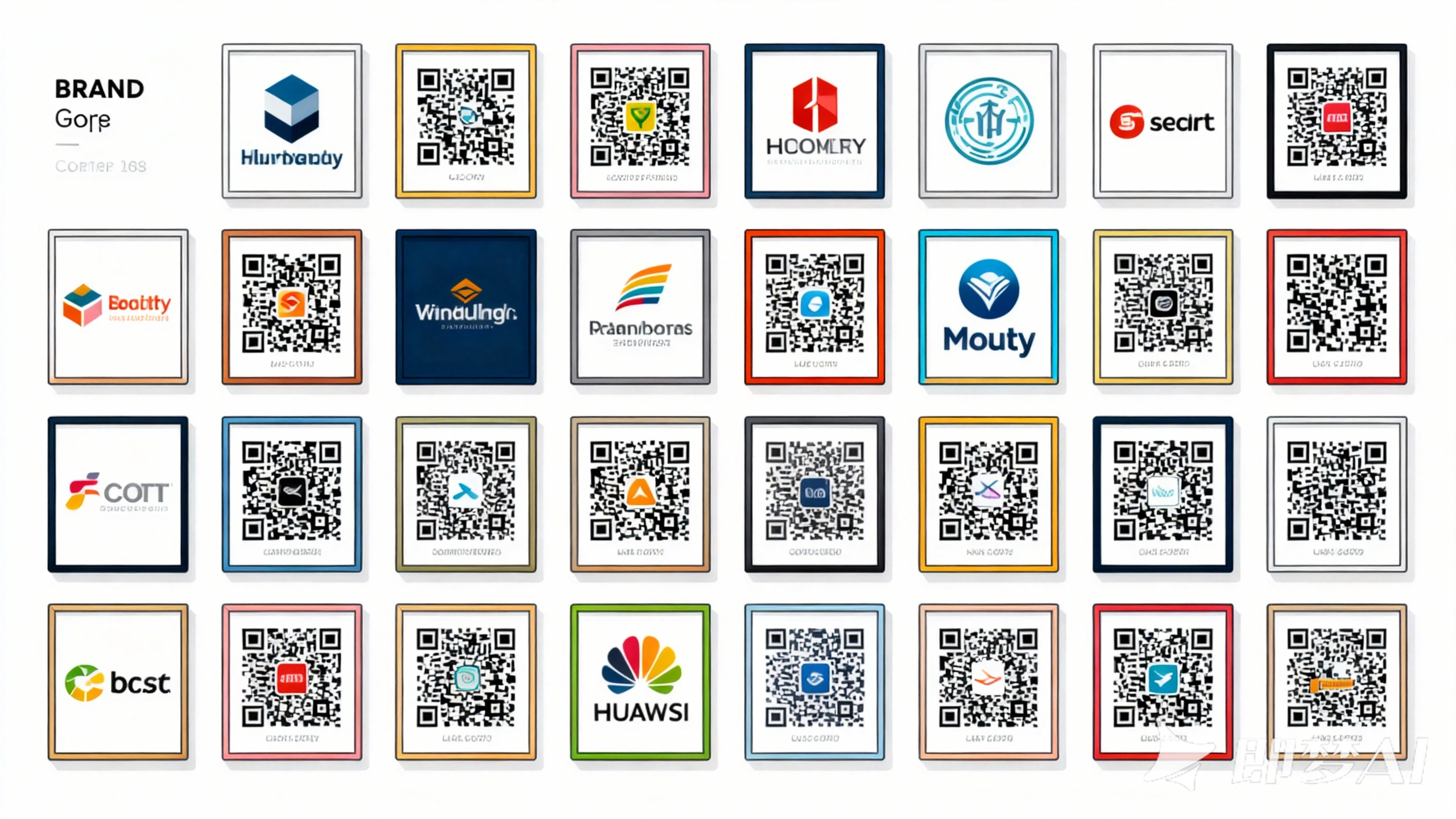
What are Custom QR Codes?
Custom QR codes are QR codes that have been modified from the standard black-and-white pattern to include branding elements like logos, colors, frames, and custom patterns. They maintain the same functionality as standard QR codes but with enhanced visual appeal that aligns with your brand identity.
Key Customization Elements
- Logos: Company or brand logos in the center
- Colors: Brand colors for foreground and background
- Frames: Decorative borders and "Scan Me" text
- Patterns: Custom dot shapes and eye patterns
- Gradients: Color gradients for modern look
- Backgrounds: Images or patterns behind the code
Why Use Custom QR Codes?
Brand Recognition
- Consistency: Match your brand identity
- Professional: More polished appearance
- Memorable: Stand out from generic codes
- Trust: Builds brand credibility
Marketing Benefits
- Higher Scan Rates: Attractive codes get more scans
- Social Sharing: People more likely to share branded codes
- Campaign Integration: Match marketing materials
- Competitive Advantage: Stand out from competitors
Business Advantages
- Brand Awareness: Reinforce brand identity
- Customer Engagement: More appealing to scan
- Professional Image: Shows attention to detail
- Marketing ROI: Better campaign performance
Types of Custom QR Code Customization
Logo Integration
Adding your logo to the center of a QR code is one of the most popular customizations.
Best Practices
- Size: Maximum 30% of QR code area
- Position: Center of the code
- Error Correction: Use Level Q or H
- Contrast: Ensure logo contrasts with background
- Testing: Always test before printing
Common Mistakes
- Logo too large (blocks scanning)
- Low contrast (hard to scan)
- Complex logos (reduce scannability)
- Wrong error correction level
Color Customization
Using brand colors instead of black and white.
Color Selection
- Foreground: Dark colors (black, navy, dark gray)
- Background: Light colors (white, light gray, pastels)
- Contrast: Minimum 4:1 contrast ratio
- Accessibility: Consider colorblind users
- Print: Test how colors print
Color Tips
- Avoid red on red or similar colors
- Use high contrast combinations
- Test in different lighting
- Consider print vs. digital colors
- Maintain brand consistency
Frame and Border Design
Adding decorative frames around QR codes.
Frame Types
- Simple Borders: Clean lines around code
- Text Frames: "Scan Me" or instructions
- Decorative: Patterns and designs
- Branded: Include brand elements
- Minimal: Subtle enhancements
Design Considerations
- Don't interfere with code scanning
- Keep frames proportional
- Match brand style
- Consider placement context
- Test readability
Pattern Customization
Customizing the dot patterns and eye markers.
Pattern Options
- Dot Shapes: Round, square, rounded squares
- Eye Patterns: Custom position markers
- Gradients: Color transitions
- Textures: Subtle patterns
- Styles: Modern, classic, creative
Technical Requirements
- Maintain scannability
- Use appropriate error correction
- Test on multiple devices
- Consider print resolution
- Verify in different sizes
Step-by-Step: Creating Custom QR Codes
Step 1: Choose a Custom QR Code Generator
Select a tool that offers customization:
Key Features:
- Logo upload capability
- Color customization
- Frame options
- Error correction levels
- Preview and testing
Recommendation: CustomQR.pro offers comprehensive customization options with professional results.
Step 2: Enter Your Content
- Select Type: Choose URL, text, vCard, etc.
- Enter Data: Add your content
- Verify: Double-check information
Step 3: Add Your Logo
- Upload Logo: Use high-resolution image
- Position: Center placement recommended
- Size: Adjust to 20-30% of code area
- Preview: Check appearance
- Test: Verify scannability
Step 4: Customize Colors
- Foreground Color: Choose dark brand color
- Background Color: Choose light color
- Check Contrast: Ensure 4:1 minimum ratio
- Preview: See how it looks
- Test: Verify scanning works
Step 5: Add Frame (Optional)
- Select Frame Style: Choose from options
- Add Text: "Scan Me" or instructions
- Customize: Match brand style
- Preview: Check overall appearance
- Test: Ensure frame doesn't interfere
Step 6: Test and Download
- Preview: Review final design
- Test Scan: Use multiple devices
- Check Quality: Verify resolution
- Download: Choose format (PNG, SVG, PDF)
- Print Test: Test print quality
Best Practices for Custom QR Codes
Design Principles
Maintain Scannability
- Error Correction: Use appropriate level
- Size: Minimum 1x1 inch for print
- Contrast: High contrast essential
- Testing: Test on multiple devices
- Quality: High resolution for print
Brand Consistency
- Colors: Match brand guidelines
- Logo: Use official brand logo
- Style: Match brand aesthetic
- Typography: Use brand fonts in frames
- Tone: Match brand voice
User Experience
- Clear Instructions: Add "Scan Me" text
- Context: Place where users expect
- Size: Large enough to scan easily
- Lighting: Consider display environment
- Accessibility: Ensure colorblind-friendly
Technical Considerations
Error Correction Levels
- Level L: 7% - Basic codes, no logo
- Level M: 15% - Standard, small logo
- Level Q: 25% - Medium logo, recommended
- Level H: 30% - Large logo, maximum
File Formats
- PNG: Best for digital use, web
- SVG: Scalable, vector format
- PDF: Print-ready, high quality
- EPS: Professional printing
Resolution Requirements
- Digital: 72-150 DPI
- Print: 300 DPI minimum
- Large Format: 600+ DPI
- Vector: SVG for unlimited scaling
Common Mistakes to Avoid
Design Mistakes
- Logo too large (blocks scanning)
- Low contrast colors
- Complex patterns
- Too many customizations
- Ignoring error correction
Technical Mistakes
- Low resolution images
- Wrong file format
- Not testing before use
- Poor print quality
- Incompatible colors
Custom QR Code Examples
Business Cards
- Small logo (20% of code)
- Brand colors
- Simple frame
- Professional appearance
Marketing Materials
- Medium logo (25-30%)
- Bold colors
- Decorative frame
- Eye-catching design
Product Packaging
- Brand logo
- Product colors
- Minimal frame
- High contrast
Event Materials
- Event logo
- Theme colors
- Creative frame
- Large size for easy scanning
Advanced Customization Techniques
Gradient QR Codes
Using color gradients for modern look:
- Smooth color transitions
- Maintain contrast
- Test scannability
- Use sparingly
Image Backgrounds
Placing QR codes on images:
- Ensure high contrast
- Use overlay if needed
- Test thoroughly
- Consider readability
Animated QR Codes
For digital displays:
- Subtle animations
- Don't interfere with scanning
- Test on multiple devices
- Consider file size
Testing Custom QR Codes
Pre-Print Testing
- Digital Test: Scan on screen
- Print Test: Print and scan
- Multiple Devices: Test iPhone, Android
- Lighting Conditions: Test in various light
- Distance: Test from different distances
Quality Checklist
- Scans on multiple devices
- Works in different lighting
- High contrast maintained
- Logo doesn't block scanning
- Colors print correctly
- Size appropriate for use
- Frame doesn't interfere
- Error correction adequate
Cost Considerations
Free Customization
- Basic logo addition
- Limited color options
- Simple frames
- Watermarks possible
Paid Customization
- Advanced features
- No watermarks
- Professional quality
- Priority support
- Bulk customization
Frequently Asked Questions
Q: How much can I customize a QR code before it stops working?
A: You can customize quite a bit, but key limits are:
- Logo: Maximum 30% of code area
- Colors: Must maintain 4:1 contrast ratio
- Error correction: Use Level Q or H for customization
- Always test before finalizing
Q: Can I use any logo in my QR code?
A: Yes, but ensure:
- High resolution (300 DPI minimum)
- Simple design (not too complex)
- High contrast with background
- Proper sizing (20-30% of code)
- Test scannability
Q: Do custom QR codes work on all phones?
A: Yes! Custom QR codes work on all modern smartphones that can scan standard QR codes. The customization is visual only - the underlying code structure remains the same. However, always test on multiple devices to ensure compatibility.
Q: What's the best error correction level for custom QR codes?
A: For custom QR codes with logos:
- Level Q (25%): Recommended for most cases
- Level H (30%): For larger logos or more customization
- Level M (15%): Only for small logos or minimal customization
- Always test to ensure it works
Q: Can I change colors after creating a custom QR code?
A: With static QR codes, you'll need to regenerate with new colors. However, dynamic QR codes allow you to update the design (if the service supports it) without changing the QR code image itself.
Q: How do I ensure my custom QR code prints correctly?
A:
- Use 300 DPI minimum resolution
- Test print before mass production
- Use high-quality printing
- Verify colors match brand guidelines
- Check contrast in printed version
- Ensure adequate size (minimum 1x1 inch)
Summary
Custom QR codes are an excellent way to enhance your brand presence while maintaining functionality. By carefully balancing customization with scannability, you can create QR codes that are both attractive and effective. Remember to test thoroughly, use appropriate error correction, and maintain high contrast for best results.
Key Takeaways:
- Custom QR codes enhance brand recognition and engagement
- Logo should be 20-30% of code area maximum
- Maintain high contrast (4:1 minimum) for scannability
- Use error correction Level Q or H for customization
- Always test on multiple devices before finalizing
- Balance aesthetics with functionality
Ready to create custom QR codes? Start customizing →
Related Resources
- Create Custom QR Code - Free custom QR code generator
- QR Code with Logo Guide - Learn logo integration
- QR Code Best Practices - Design and optimization tips
- QR Code Size Guide - Size and resolution guidelines
- View All Features - Explore customization options
Start Creating
Ready to create branded QR codes? Start customizing →
Ready to Create Your QR Code?
Put what you've learned into practice. Generate your first QR code in minutes.
Start Generating QR CodesRelated Articles
Why Use QR Code? Benefits, Use Cases, and Real-World Applications
Discover why QR codes are essential for businesses and individuals. Learn about QR code benefits, use cases, ROI, and success stories. Find out when and how to use QR codes effectively.
When to Use QR Code: Best Use Cases and Timing Guide
Learn when to use QR codes effectively. Discover the best scenarios, timing, and use cases for QR codes in business and personal applications. Avoid common mistakes.
What Size Should QR Code Be? Complete Size Guide for All Use Cases
Learn the optimal QR code size for printing, digital display, and different applications. Understand minimum size requirements, distance calculations, and best practices for QR code dimensions.