How to Add Logo to QR Code: Step-by-Step Guide
Learn how to add your brand logo to QR codes in this comprehensive guide. Discover best practices for logo size, placement, and design to create professional branded QR codes.
Adding a logo to your QR code is one of the best ways to make it stand out and reinforce your brand. In this guide, we'll walk you through the process step-by-step and share best practices for creating professional branded QR codes.
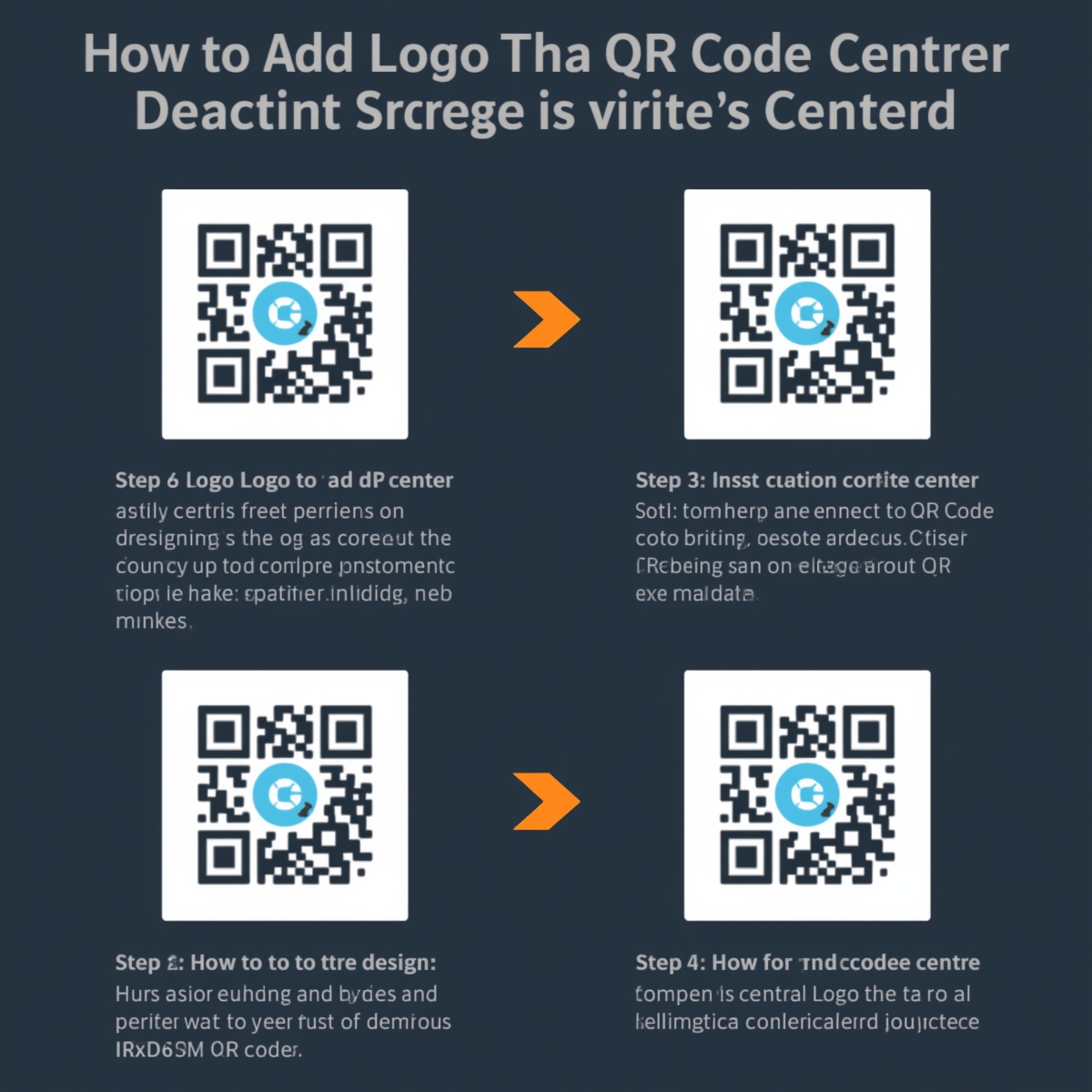
Why Add a Logo to Your QR Code?
Brand Recognition
A logo in the center of your QR code immediately identifies your brand, making it more recognizable and trustworthy.
Increased Scan Rates
Studies show that branded QR codes with logos receive 30% more scans than plain black-and-white codes. The visual appeal and brand recognition encourage users to scan.
Professional Appearance
Logo QR codes look more polished and professional, perfect for:
- Business cards
- Marketing materials
- Product packaging
- Event materials
- Restaurant menus
Step-by-Step Guide: Adding Logo to QR Code
Step 1: Choose Your QR Code Generator
Select a QR code generator that supports logo upload. At CustomQR.pro, you can add logos to any QR code type:
- Visit our QR Code Generator
- Choose your QR code type (URL, Text, WiFi, etc.)
- Enter your content
Step 2: Upload Your Logo
- Look for the "Logo" or "Add Logo" option in the customization panel
- Click "Upload Logo" and select your logo file
- Supported formats: PNG, JPG, SVG (PNG with transparent background recommended)
Step 3: Adjust Logo Size
Recommended logo size: 20-30% of the QR code area
- Too small: Logo becomes hard to see
- Too large: May interfere with QR code scanning
- Just right: Visible and scannable
Step 4: Position Your Logo
Most QR code generators place the logo in the center by default, which is the ideal position. The center area has built-in error correction, so it's safe to place your logo there.
Step 5: Test Your QR Code
Always test before printing!
- Download your QR code
- Scan it with multiple devices (iPhone, Android, different apps)
- Test in different lighting conditions
- Verify the scan leads to the correct destination
Step 6: Download and Use
Once tested, download your QR code in your preferred format:
- PNG: Best for digital use and printing
- SVG: Scalable vector format for web
- PDF: High-quality format for professional printing
Best Practices for Logo QR Codes
Logo Design Tips
-
Use High-Resolution Logos
- Minimum 300 DPI for printing
- Clear, crisp edges
- Avoid pixelated or blurry images
-
Transparent Background
- PNG with transparent background works best
- Allows QR code pattern to show around the logo
- Creates a more integrated look
-
Simple Logos Work Best
- Complex logos with fine details may not render well
- Simple, bold designs are more effective
- Consider using a simplified version of your logo
-
High Contrast
- Ensure good contrast between logo and QR code colors
- Dark logos on light QR codes (or vice versa)
- Test readability in different lighting
Technical Best Practices
-
Error Correction Level
- Use Medium (M) or High (H) error correction
- Allows logo to cover more area without breaking scanning
- CustomQR.pro automatically adjusts error correction
-
Logo Size Guidelines
- Minimum: 15% of QR code area
- Recommended: 20-30% of QR code area
- Maximum: 35% of QR code area (may affect scanning)
-
Padding Around Logo
- Leave some space between logo and QR code pattern
- Prevents interference with scanning
- Most generators handle this automatically
-
Color Considerations
- Ensure logo colors contrast with QR code colors
- Avoid placing dark logos on dark QR codes
- Test with different color combinations
Common Mistakes to Avoid
❌ Logo Too Large
Problem: Logo covers too much of the QR code, making it unscannable
Solution: Keep logo between 20-30% of QR code area
❌ Low-Resolution Logo
Problem: Logo appears blurry or pixelated
Solution: Use high-resolution logo (300+ DPI)
❌ Poor Contrast
Problem: Logo blends into QR code, hard to see
Solution: Ensure strong contrast between logo and background
❌ Not Testing
Problem: QR code doesn't scan after printing
Solution: Always test with multiple devices before final use
❌ Complex Logo Details
Problem: Fine details don't render well at small sizes
Solution: Use simplified logo version or increase QR code size
Real-World Examples
Business Cards
- Small QR code (2x2 cm) with company logo
- Links to LinkedIn profile or company website
- Professional appearance increases networking effectiveness
Product Packaging
- Branded QR code on product labels
- Links to product information, reviews, or promotions
- Reinforces brand identity at point of sale
Marketing Materials
- Logo QR codes on flyers, posters, and brochures
- Tracks campaign performance
- Professional appearance increases engagement
Restaurant Menus
- Logo QR codes on table tents or menus
- Links to online menu, reviews, or ordering
- Creates seamless customer experience
Advanced Tips
Custom Logo Shapes
- Some generators allow custom logo shapes (circle, square, rounded)
- Match your brand's visual identity
- Creates more cohesive design
Logo with Frame
- Add "SCAN ME" text or decorative frame
- Draws attention to QR code
- Provides context for scanning
Color Matching
- Match QR code colors to your brand
- Use brand colors for foreground and background
- Creates unified brand experience
Troubleshooting
QR Code Won't Scan
- Check logo size: Reduce if too large
- Test error correction: Increase error correction level
- Check contrast: Ensure good color contrast
- Test different devices: Some scanners are more sensitive
Logo Looks Blurry
- Use higher resolution: Upload 300+ DPI logo
- Check file format: PNG works best
- Increase QR code size: Larger QR codes show logo better
Logo Covers Important Areas
- Reduce logo size: Keep within 20-30% range
- Reposition logo: Center is usually safest
- Test thoroughly: Scan from multiple angles
Conclusion
Adding a logo to your QR code is a simple way to enhance brand recognition and increase scan rates. By following these best practices, you can create professional, scannable QR codes that represent your brand effectively.
Remember:
- Keep logo size between 20-30% of QR code area
- Use high-resolution logos with transparent backgrounds
- Always test before printing
- Ensure good contrast between logo and QR code colors
Ready to create your branded QR code? Start generating QR codes with logos or explore our features to see all customization options.
Ready to Create Your QR Code?
Put what you've learned into practice. Generate your first QR code in minutes.
Start Generating QR CodesRelated Articles
Why Is My QR Code Not Working? Complete Troubleshooting Guide
Fix QR code scanning issues with our comprehensive troubleshooting guide. Learn common problems, solutions, and prevention tips. Get your QR codes working again quickly.
How to Track QR Code Scans: Complete Analytics Guide
Learn how to track QR code scans with analytics. Understand static vs dynamic QR codes, set up tracking, interpret data, and measure campaign success. Complete guide to QR code analytics.
How to Scan QR Code: Complete Guide for All Devices
Learn how to scan QR codes on iPhone, Android, and web browsers. Step-by-step guide with troubleshooting tips. Scan QR codes instantly with your smartphone camera or our free online scanner.