How to Make a WiFi QR Code: The Ultimate 2026 Guide to Instant Connectivity
Stop typing long passwords. Learn how WiFi QR codes work, how to scan them on any device, and how to create your own for home or business in seconds.
"What's the WiFi password?"
In 2026, this question is usually followed by a quick scan rather than a scramble for a crumpled piece of paper or a complex string of random characters. Whether you are hosting guests at home, managing a bustling cafe, or running a modern office, a WiFi QR Code is the gold standard for seamless connectivity.
In this guide, we’ll explain the magic behind the technology, how to scan it on any smartphone, and why you should be using a professional generator to protect your network.
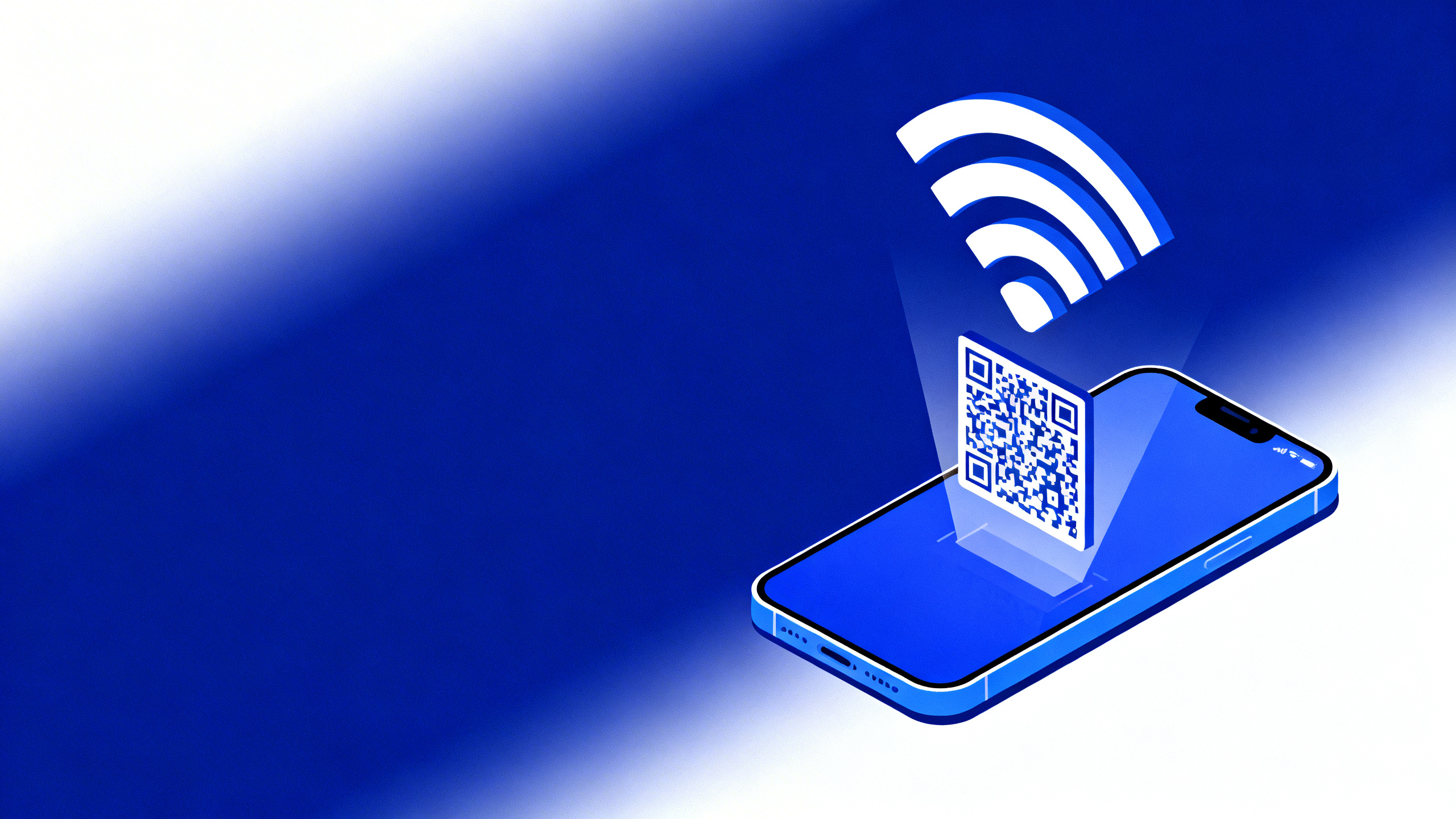
How WiFi QR Codes Work: The Under-the-Hood Secret
You might think a WiFi QR code just "types" the password for you, but it’s actually a bit more sophisticated. It uses a specific data format called WIFI:S:SSID;T:WPA;P:PASSWORD;;.
When your phone’s camera detects this pattern, it doesn't just treat it as text. It recognizes it as a system command. Here’s how the data is structured:
- S: Denotes the Service Set Identifier (your WiFi name).
- T: Denotes the Authentication Type (usually WPA or WPA2).
- P: Denotes the Password.
- H: (Optional) Denotes if the network is hidden.
The beauty of this system is that the password never needs to be visible on the screen. The phone processes the credentials in the background and connects you instantly.
How to Scan a WiFi QR Code: Which Tools to Use?
Gone are the days when you needed a specialized app to join a network. Modern mobile operating systems have this functionality built-in.
🍏 On iPhone (iOS)
- Open the native Camera app.
- Point it at the QR code.
- A yellow banner will appear saying "Join [Network Name] Network".
- Tap the banner, then tap "Join" on the confirmation pop-up.
🤖 On Android
- Camera App: Most modern Android phones (Google Pixel, Samsung Galaxy, etc.) have QR scanning built into the Camera app. Just point and tap the connectivity pop-up.
- WiFi Settings: You can often scan directly from your settings. Go to Settings > Network & Internet > WiFi and tap the QR icon next to "Add Network".
- Google Lens: If your native camera doesn't support it, Google Lens is the most reliable tool for Android users.
How to Create Your Own WiFi QR Code
Creating a professional-grade WiFi QR code takes less than 30 seconds with the right tool.
- Go to the Source: Visit the CustomQR.pro WiFi QR Code Generator.
- Enter Network Details: Type in your Network Name (SSID) and your Password. Make sure they are typed exactly as they appear in your router settings.
- Select Security Type: Choose the correct encryption (usually WPA/WPA2).
- Brand It: At CustomQR.pro, we let you add a WiFi icon to the center and customize the colors to match your home decor or business branding.
- Download & Print: Export your code as a high-quality PNG or SVG and place it where your guests can easily find it.
Pro Tips for WiFi QR Codes in 2026
- Security First: Never post your WiFi QR code in a place where it can be seen from the street. Keep it inside your premises.
- Guest Networks: For businesses, always point your QR code to a Guest Network, never your primary business network that handles sensitive data or POS systems.
- Surface Matters: Avoid printing on highly reflective materials. A matte finish works best for phone cameras to avoid glare.
- Check the "Quiet Zone": Ensure there is enough white space around the QR code so the camera can distinguish it from your background patterns.
Conclusion: Convenience Meets Security
A WiFi QR code isn't just a cool tech trick; it's a sign of a thoughtful host or a professional business. It saves time, prevents frustration, and keeps your physical password keys hidden from prying eyes.
Ready to upgrade your guest experience? Build your high-security WiFi QR Code with CustomQR.pro now →
Ready to Create Your QR Code?
Put what you've learned into practice. Generate your first QR code in minutes.
Start Generating QR CodesRelated Articles
How to Create a QR Code for a Phone Number: The 2026 Connectivity Guide
Turn your phone number into a scannable QR code. Learn how it works, why it's safer than manual entry, and how to use it for business and personal networking.
How to Create a QR Code for a Google Maps Location: 2026 Guide
Learn how to turn any Google Maps location into a scannable QR code. Perfect for business storefronts, event invitations, and real estate flyers.
How to Scan QR Code: Complete Guide for All Devices
Learn how to scan QR codes on iPhone, Android, and web browsers. Step-by-step guide with troubleshooting tips. Scan QR codes instantly with your smartphone camera or our free online scanner.