How to Generate WiFi QR Code: Complete Step-by-Step Guide
Learn how to generate WiFi QR codes for easy network sharing. Step-by-step guide with examples, best practices, and troubleshooting tips. Create your WiFi QR code in minutes.
Sharing your WiFi password has never been easier! WiFi QR codes allow guests to connect to your network instantly by simply scanning a code with their smartphone. No more spelling out long passwords or dealing with typos. This comprehensive guide will teach you everything you need to know about creating WiFi QR codes.
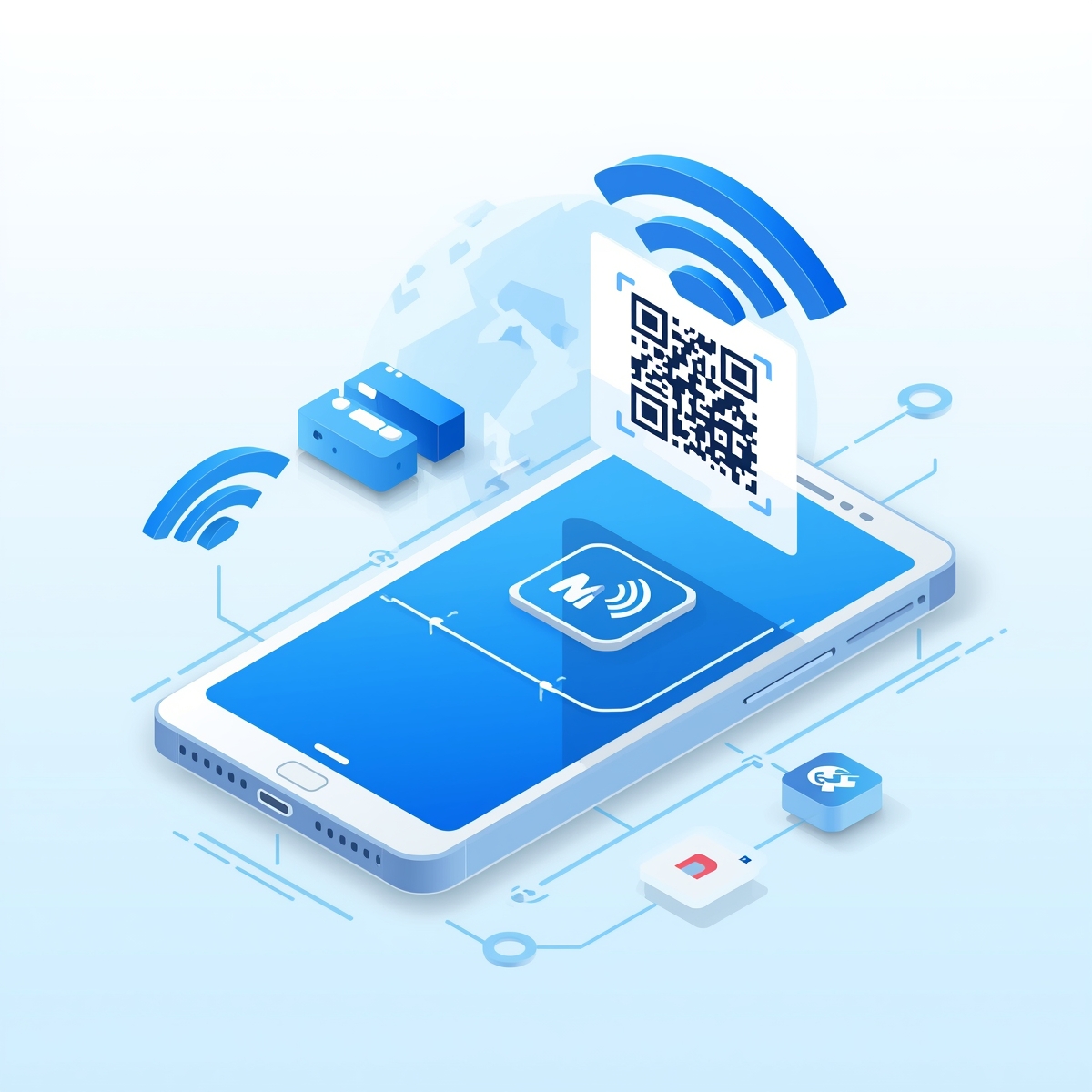
What is a WiFi QR Code?
A WiFi QR code is a special type of QR code that contains your wireless network credentials. When someone scans it with their smartphone camera, their device automatically connects to the WiFi network without manually entering the password.
How WiFi QR Codes Work
WiFi QR codes use a standardized format (WIFI:T:WPA;S:NetworkName;P:Password;;) that smartphone cameras can recognize and interpret. The code contains:
- Network Name (SSID): Your WiFi network's name
- Security Type: WPA, WPA2, WEP, or Open
- Password: The network password (encrypted in the code)
- Hidden Network Status: Whether the network is hidden
When scanned, the phone's camera app recognizes this format and prompts the user to connect automatically.
Why Use WiFi QR Codes?
Convenience for Guests
- Instant Connection: Guests connect in seconds, no password typing required
- No Mistakes: Eliminates typos and password confusion
- Professional: Impresses visitors with modern technology
- Multilingual: Works regardless of language barriers
Business Benefits
- Customer Experience: Restaurants, cafes, and hotels can provide seamless WiFi access
- Time Savings: Staff don't need to manually share passwords
- Security: You can change passwords without reprinting codes (with dynamic QR codes)
- Branding: Customize QR codes with your logo and colors
Common Use Cases
- Home Networks: Share WiFi with friends and family easily
- Restaurants & Cafes: Provide customer WiFi access
- Hotels: Guest room WiFi credentials
- Offices: Visitor and employee network access
- Events: Temporary network access for conferences or gatherings
Step-by-Step: How to Generate a WiFi QR Code
Step 1: Gather Your WiFi Information
Before creating your WiFi QR code, you'll need:
- Network Name (SSID): The name of your WiFi network
- Password: The network password
- Security Type: Usually WPA or WPA2 (check your router settings)
- Hidden Network: Whether your network is hidden (usually No)
You can find this information in your router's admin panel or network settings.
Step 2: Choose a WiFi QR Code Generator
There are several options for creating WiFi QR codes:
Free Online Generators
- CustomQR.pro: Free WiFi QR code generator with customization options
- No registration required: Create codes instantly
- Customizable: Add logos and colors
Professional Tools
- Dynamic QR codes: Update WiFi credentials without reprinting
- Analytics: Track how many people connect
- Bulk generation: Create multiple codes at once
Recommendation: Start with CustomQR.pro's free WiFi QR code generator to create your first code.
Step 3: Enter Your WiFi Details
Once you've chosen a generator, enter your network information:
- Network Name (SSID): Type your WiFi network name exactly as it appears
- Security Type: Select WPA, WPA2, WEP, or Open
- Most modern networks use WPA2
- Check your router if unsure
- Password: Enter your WiFi password
- Be careful with capitalization and special characters
- Hidden Network: Check this box only if your network is hidden
Step 4: Customize Your QR Code (Optional)
While basic WiFi QR codes work perfectly, customization can make them more professional:
Basic Customization
- Colors: Match your brand colors
- Logo: Add your business logo
- Frame: Add decorative borders or "Scan to Connect" text
Design Tips
- High Contrast: Ensure the code is scannable
- Size: Make it large enough to scan easily (at least 2x2 inches)
- Error Correction: Use higher error correction if adding a logo
Step 5: Preview and Test
Before printing or sharing:
- Preview the Code: Check that all information is correct
- Test Scan: Use your phone to scan the code
- Verify Connection: Ensure it connects to the correct network
- Check Password: Confirm the password is correct
Step 6: Download and Share
Once satisfied:
- Download: Save as PNG or SVG for high quality
- Print: Print at appropriate size (minimum 2x2 inches)
- Display: Place where guests can easily scan
- Digital Share: Send via email or messaging apps
Best Practices for WiFi QR Codes
Security Considerations
Use Strong Passwords
- Create complex passwords with letters, numbers, and symbols
- Change passwords regularly for public networks
- Consider using dynamic QR codes for easy password updates
Network Segmentation
- Create a separate guest network if possible
- Limit guest network access to internet only
- Use firewall rules to protect your main network
Physical Security
- Place QR codes in visible but controlled areas
- Don't share codes publicly on social media
- Remove or update codes when no longer needed
Design Best Practices
Size and Placement
- Minimum Size: 2x2 inches (5x5 cm) for reliable scanning
- Distance: Place at eye level, 1-3 feet away
- Lighting: Ensure adequate lighting for scanning
- Background: Use high contrast backgrounds
Error Correction
- Level L: 7% error correction (basic codes)
- Level M: 15% error correction (recommended)
- Level Q: 25% error correction (with logo)
- Level H: 30% error correction (maximum)
Testing
- Test on multiple devices (iPhone, Android)
- Test in different lighting conditions
- Verify connection works before printing
Use Cases and Examples
Home Use
- Print and frame near your front door
- Share with frequent visitors
- Create different codes for 2.4GHz and 5GHz networks
Business Use
- Display at reception desks
- Include in guest welcome packets
- Add to restaurant tables or menus
- Place in hotel rooms
Event Use
- Create temporary networks for events
- Print on event badges or programs
- Share via event apps or websites
Troubleshooting Common Issues
QR Code Won't Scan
Problem: Phone camera doesn't recognize the code
Solutions:
- Ensure code is large enough (minimum 2x2 inches)
- Check lighting conditions
- Clean the code surface
- Try a different QR code scanner app
- Verify the code isn't damaged or distorted
Wrong Network Connects
Problem: Code connects to wrong network
Solutions:
- Double-check SSID spelling (case-sensitive)
- Verify security type matches your network
- Ensure password is correct
- Check for hidden characters in password
Connection Fails After Scan
Problem: Code scans but connection fails
Solutions:
- Verify password is correct
- Check security type (WPA vs WPA2)
- Ensure network is within range
- Check if network has device limits
- Verify router settings allow new connections
Password Contains Special Characters
Problem: Special characters cause connection issues
Solutions:
- Some characters may need URL encoding
- Try escaping special characters
- Consider changing password to alphanumeric only
- Test with different QR code generators
Advanced: Dynamic WiFi QR Codes
For businesses that need to update WiFi credentials regularly, dynamic QR codes offer a solution:
Benefits of Dynamic Codes
- Update Without Reprinting: Change password without new codes
- Analytics: Track connection attempts and success rates
- Time-Limited Access: Set expiration dates
- Multiple Networks: One code for different networks
When to Use Dynamic Codes
- Hotels with changing guest passwords
- Events with temporary networks
- Businesses that rotate passwords regularly
- Networks with access control requirements
Learn more about dynamic QR codes and how they can benefit your business.
Comparison: WiFi QR Code Generators
Free vs. Paid Options
Free Generators:
- ✅ No cost
- ✅ Instant generation
- ❌ Static codes only
- ❌ No analytics
- ❌ Limited customization
Paid/Professional Tools:
- ✅ Dynamic codes
- ✅ Analytics and tracking
- ✅ Advanced customization
- ✅ Bulk generation
- ✅ Password management
Recommendation: Start with free tools for personal use, upgrade to professional tools for business needs.
Frequently Asked Questions
Q: Can I change the WiFi password after creating the QR code?
A: With static QR codes, you'll need to create a new code if you change the password. However, dynamic QR codes allow you to update the password without reprinting. The same QR code will automatically use the new password when scanned.
Q: Are WiFi QR codes secure?
A: WiFi QR codes are as secure as manually entering a password. The password is encoded in the QR code format, which is readable by anyone who scans it. For maximum security:
- Use strong passwords
- Create separate guest networks
- Use dynamic QR codes for easy password rotation
- Don't share codes publicly
Q: Do all phones support WiFi QR codes?
A: Most modern smartphones (iPhone 11+, Android 10+) can scan WiFi QR codes natively using the built-in camera app. Older devices may need a QR code scanner app. The connection process is automatic on supported devices.
Q: Can I use WiFi QR codes for hidden networks?
A: Yes! Most WiFi QR code generators support hidden networks. Simply check the "Hidden Network" option when creating your code. The QR code will include the necessary information to connect to hidden networks.
Q: What's the difference between 2.4GHz and 5GHz networks?
A: These are different WiFi frequency bands. Some routers create separate networks for each band. You'll need separate QR codes for each network if they have different names. Many modern routers use the same SSID for both bands, so one QR code works for both.
Q: Can I add my logo to a WiFi QR code?
A: Yes! Many QR code generators allow you to add logos and customize colors. However, be careful not to cover too much of the code, as this can affect scannability. Use higher error correction levels (Level Q or H) when adding logos.
Summary
WiFi QR codes are a simple yet powerful solution for sharing network access. Whether you're hosting guests at home or providing WiFi for customers at your business, QR codes eliminate the hassle of manually sharing passwords.
Key Takeaways:
- WiFi QR codes make network sharing instant and convenient
- They work with most modern smartphones without additional apps
- Customization options allow you to match your brand
- Dynamic QR codes offer flexibility for businesses
- Proper sizing and placement ensure reliable scanning
Now that you know how to generate WiFi QR codes, it's time to create your first one! Start with our free WiFi QR code generator and experience the convenience yourself.
Related Resources
- Create WiFi QR Code - Free WiFi QR code generator
- QR Code Generator - Create all types of QR codes
- Dynamic QR Codes Guide - Learn about editable QR codes
- QR Code Best Practices - Tips for effective QR codes
- View All Features - Explore all QR code types
Start Creating
Ready to generate your WiFi QR code? Create one now →
Ready to Create Your QR Code?
Put what you've learned into practice. Generate your first QR code in minutes.
Start Generating QR CodesRelated Articles
Why Is My QR Code Not Working? Complete Troubleshooting Guide
Fix QR code scanning issues with our comprehensive troubleshooting guide. Learn common problems, solutions, and prevention tips. Get your QR codes working again quickly.
How to Track QR Code Scans: Complete Analytics Guide
Learn how to track QR code scans with analytics. Understand static vs dynamic QR codes, set up tracking, interpret data, and measure campaign success. Complete guide to QR code analytics.
How to Scan QR Code: Complete Guide for All Devices
Learn how to scan QR codes on iPhone, Android, and web browsers. Step-by-step guide with troubleshooting tips. Scan QR codes instantly with your smartphone camera or our free online scanner.