How to Create Business Card QR Code: Complete Guide
Learn how to create business card QR codes with vCard format. Step-by-step guide to generate professional contact QR codes for networking and marketing. Create your business card QR code in minutes.
In today's digital age, business card QR codes have revolutionized networking. Instead of manually typing contact information, people can simply scan a QR code to instantly save your details to their phone. This comprehensive guide will teach you how to create professional business card QR codes that make networking effortless.
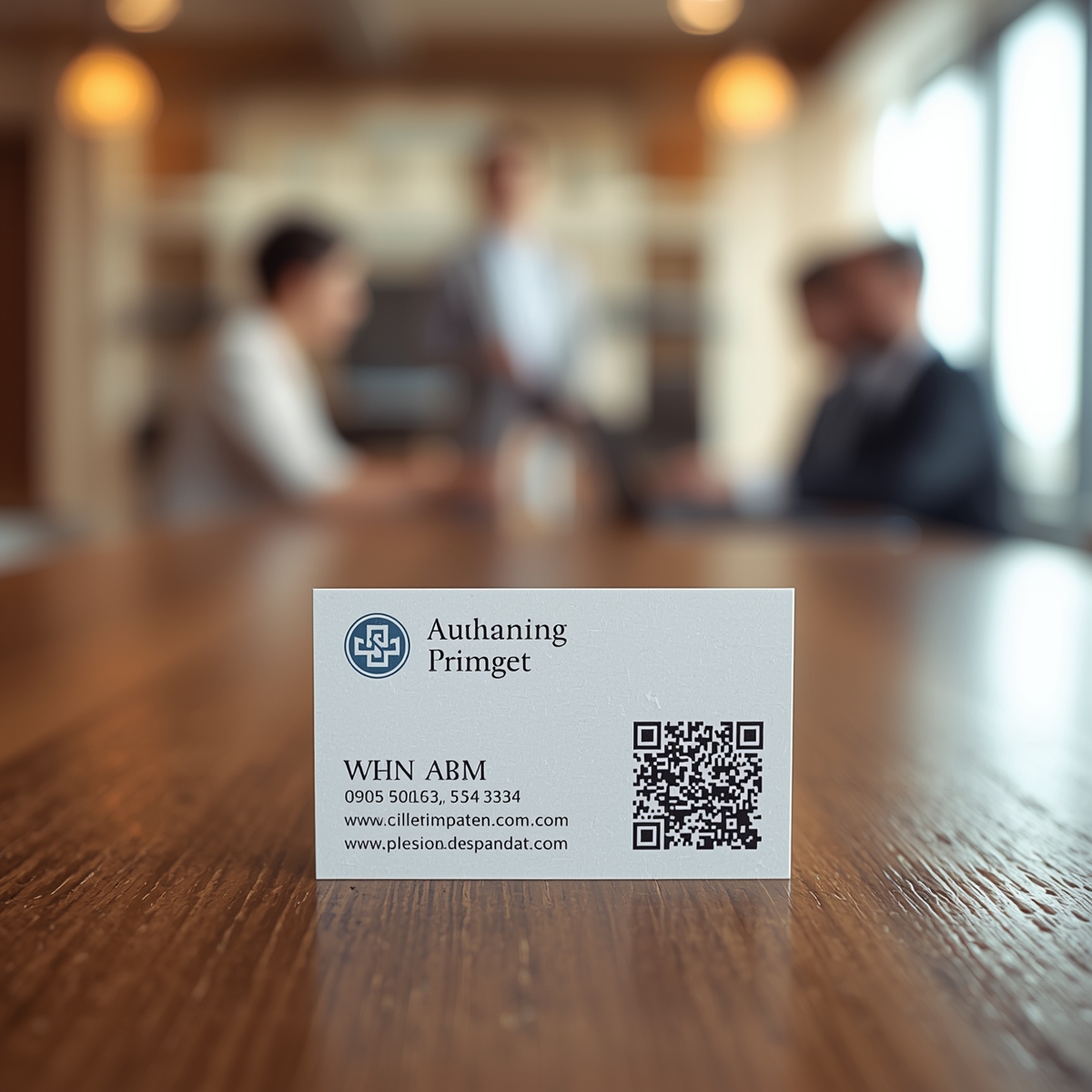
What is a Business Card QR Code?
A business card QR code is a QR code that contains your contact information in vCard format. When scanned, it automatically adds your name, phone number, email, company, and other details to the user's contacts app. This eliminates the need for manual data entry and reduces errors.
How Business Card QR Codes Work
Business card QR codes use the vCard (Virtual Contact File) format, which is a standard format for electronic business cards. The QR code encodes information like:
- Name: Your full name
- Company: Your organization
- Title: Your job title
- Phone: Phone numbers (work, mobile, etc.)
- Email: Email addresses
- Website: Your website URL
- Address: Physical address
- Social Media: LinkedIn, Twitter, etc.
When someone scans the code, their smartphone recognizes the vCard format and prompts them to save the contact automatically.
Why Use Business Card QR Codes?
Benefits for Networking
- Instant Contact Saving: No manual typing required
- Error-Free: Eliminates typos and data entry mistakes
- Professional Image: Shows you're tech-savvy and modern
- Time-Saving: Faster than exchanging physical cards
- Eco-Friendly: Reduces paper waste
Business Advantages
- Higher Response Rates: Easier contact saving increases follow-ups
- Brand Consistency: Include your logo and brand colors
- Analytics: Track how many people scan your code (with dynamic QR codes)
- Always Up-to-Date: Update information without reprinting (dynamic codes)
- Multilingual: Works regardless of language barriers
Use Cases
- Networking Events: Conferences, trade shows, meetups
- Sales Meetings: Quick contact exchange with prospects
- Restaurant Tables: Chefs and managers sharing contact info
- Real Estate: Agents sharing property and contact details
- Service Businesses: Consultants, freelancers, professionals
Step-by-Step: Creating Your Business Card QR Code
Step 1: Prepare Your Contact Information
Before creating your QR code, gather all the information you want to include:
Essential Information:
- Full name
- Job title
- Company name
- Phone number (work and/or mobile)
- Email address
- Website URL
Optional Information:
- Physical address
- Social media profiles (LinkedIn, Twitter, Instagram)
- Additional phone numbers
- Notes or description
Tip: Decide what information is essential vs. optional. Too much information can make the QR code complex and harder to scan.
Step 2: Choose a Business Card QR Code Generator
Select a QR code generator that supports vCard format:
Free Online Generators
- CustomQR.pro: Free business card QR code generator with vCard support
- No registration: Create codes instantly
- Customizable: Add logos and brand colors
Professional Tools
- Dynamic QR codes: Update contact info without reprinting
- Analytics: Track scans and engagement
- Multiple formats: vCard, vCard 3.0, vCard 4.0
- Bulk generation: Create codes for entire teams
Recommendation: Start with CustomQR.pro's business card QR code generator for your first code.
Step 3: Enter Your Contact Details
Once you've chosen a generator, fill in your information:
- Name: Enter your full name (first and last)
- Company: Your organization name
- Title: Your job title or position
- Phone: Primary phone number
- Include country code if international
- Format: +1 (555) 123-4567
- Email: Your professional email address
- Website: Your website or LinkedIn profile
- Address (optional): Street, city, state, zip, country
- Additional Info (optional): Notes, social media links
Step 4: Customize Your QR Code
Make your business card QR code stand out with customization:
Branding Options
- Logo: Add your company logo to the center
- Colors: Match your brand colors
- Frame: Add decorative borders or "Scan to Connect" text
- Style: Choose from various design templates
Design Best Practices
- High Contrast: Ensure scannability
- Logo Size: Don't cover more than 30% of the code
- Error Correction: Use Level Q or H when adding logos
- Testing: Always test before printing
Step 5: Preview and Test
Before finalizing:
- Review Information: Double-check all details are correct
- Test Scan: Use your phone to scan the code
- Verify Contact: Ensure all fields save correctly
- Check Formatting: Verify phone numbers and addresses format properly
- Test on Multiple Devices: Try iPhone and Android
Step 6: Download and Print
Once satisfied:
- Download Format: Choose PNG (for print) or SVG (for vector)
- Resolution: Use high resolution (300 DPI minimum for print)
- Size: Ensure QR code is at least 1x1 inch on printed cards
- Placement: Position on business card where it's easily accessible
- Print Quality: Use high-quality printing for best results
Best Practices for Business Card QR Codes
Information Management
What to Include
- Essential: Name, title, company, phone, email
- Recommended: Website, LinkedIn profile
- Optional: Physical address, social media, notes
What to Avoid
- Too much information (makes code complex)
- Personal information (unless relevant)
- Outdated contact details
- Unprofessional email addresses
Design Guidelines
Size and Placement
- Minimum Size: 1x1 inch (2.5x2.5 cm) on printed cards
- Placement: Top right or bottom right corner
- White Space: Leave adequate margin around code
- Contrast: High contrast for reliable scanning
Logo Integration
- Size: Maximum 30% of QR code area
- Position: Center of the code
- Error Correction: Use Level Q or H
- Testing: Always test with logo before printing
Color Choices
- Foreground: Dark colors (black, dark blue)
- Background: Light colors (white, light gray)
- Brand Colors: Use sparingly, maintain contrast
- Avoid: Red on red, similar colors
Printing Considerations
Paper Quality
- Use high-quality card stock
- Matte or glossy finish (both work)
- Ensure smooth surface
- Avoid textured papers that may affect scanning
Size Requirements
- Standard business card: 3.5 x 2 inches
- QR code: Minimum 1x1 inch
- Leave margins for design elements
- Consider both sides of the card
Testing Before Mass Printing
- Print a test batch first
- Test scanning in various lighting
- Verify on multiple devices
- Check print quality and colors
Advanced: Dynamic Business Card QR Codes
For professionals who frequently update contact information, dynamic QR codes offer flexibility:
Benefits of Dynamic Codes
- Update Without Reprinting: Change phone, email, or address instantly
- Analytics: Track how many people scan your code
- A/B Testing: Test different contact information
- Time-Limited: Set expiration dates for events
- Multiple Contacts: One code for different people/roles
When to Use Dynamic Codes
- Sales teams with changing territories
- Event-specific contact information
- Seasonal businesses
- Professionals with multiple roles
- Companies testing different contact strategies
Learn more about dynamic QR codes and their business applications.
Business Card QR Code Examples
Standard Professional Card
- Name, title, company
- Phone, email, website
- Simple logo integration
- Clean, professional design
Creative/Design Industry
- Bold colors and custom frames
- Large logo integration
- Social media links
- Creative positioning
Real Estate Agent
- Professional photo
- Multiple contact methods
- Property website link
- Office address
Service Business
- Service description
- Multiple phone numbers
- Booking link
- Service area information
Troubleshooting Common Issues
QR Code Won't Scan
Problem: Phone doesn't recognize the code
Solutions:
- Ensure code is large enough (minimum 1x1 inch)
- Check print quality and contrast
- Verify code isn't damaged or smudged
- Try different QR scanner apps
- Test in better lighting
Contact Information Doesn't Save Correctly
Problem: Some fields missing or incorrect
Solutions:
- Verify vCard format compatibility
- Check special characters in fields
- Ensure phone numbers include country code
- Test on different devices
- Use standard vCard 3.0 format
Logo Covers Too Much
Problem: Code won't scan with logo
Solutions:
- Reduce logo size (max 30% of code)
- Increase error correction level
- Move logo slightly off-center
- Test before final printing
- Consider logo placement outside code area
Comparison: Static vs. Dynamic Business Card QR Codes
Static QR Codes
- ✅ Simple and straightforward
- ✅ No ongoing costs
- ✅ Works offline
- ❌ Can't update information
- ❌ No analytics
- ❌ Must reprint to change details
Dynamic QR Codes
- ✅ Update information anytime
- ✅ Track scans and engagement
- ✅ A/B test different information
- ❌ Requires subscription
- ❌ Needs internet connection
- ❌ Slightly more complex setup
Recommendation: Use static codes for personal use, dynamic codes for business and professional networking.
Frequently Asked Questions
Q: What information should I include in my business card QR code?
A: Include essential contact information: name, title, company, phone, email, and website. Optional but recommended: LinkedIn profile, physical address (if relevant), and social media links. Avoid including too much information as it can make the QR code complex and harder to scan.
Q: Can I add my photo to a business card QR code?
A: While you can't embed a photo directly in the vCard QR code, you can add your photo as a logo in the center of the QR code. However, keep it small (max 30% of code area) and use high error correction to ensure scannability.
Q: Do business card QR codes work on all phones?
A: Yes! Business card QR codes use the standard vCard format, which is supported by all modern smartphones (iPhone and Android). The phone's built-in camera app can scan and save the contact information automatically.
Q: Can I update my contact information after printing?
A: With static QR codes, you'll need to create a new code and reprint. However, dynamic QR codes allow you to update your contact information anytime without reprinting. The same QR code will automatically use the updated information when scanned.
Q: How do I track who scanned my business card QR code?
A: Static QR codes don't provide analytics. To track scans, you'll need a dynamic QR code service that includes analytics. These services show you how many times your code was scanned, when, and from which locations (if location tracking is enabled).
Q: What's the best size for a QR code on a business card?
A: The QR code should be at least 1x1 inch (2.5x2.5 cm) on a standard 3.5x2 inch business card. This ensures reliable scanning while leaving room for other design elements. Larger codes (up to 1.5x1.5 inches) are even better for scannability.
Summary
Business card QR codes are a modern, efficient way to share contact information. They eliminate manual data entry, reduce errors, and create a professional impression. Whether you're networking at events or meeting clients, a business card QR code makes it easy for people to save your contact information.
Key Takeaways:
- Business card QR codes use vCard format for automatic contact saving
- Include essential information: name, title, company, phone, email, website
- Customize with logos and brand colors while maintaining scannability
- Test thoroughly before printing
- Consider dynamic QR codes for businesses that need analytics or updates
Ready to create your professional business card QR code? Start with our free business card QR code generator and make networking effortless!
Related Resources
- Create Business Card QR Code - Free vCard QR code generator
- QR Code Generator - Create all types of QR codes
- Dynamic QR Codes Guide - Learn about editable QR codes
- QR Code Best Practices - Tips for effective QR codes
- View All Features - Explore all QR code types
Start Creating
Ready to create your business card QR code? Create one now →
Ready to Create Your QR Code?
Put what you've learned into practice. Generate your first QR code in minutes.
Start Generating QR CodesRelated Articles
Why Is My QR Code Not Working? Complete Troubleshooting Guide
Fix QR code scanning issues with our comprehensive troubleshooting guide. Learn common problems, solutions, and prevention tips. Get your QR codes working again quickly.
How to Track QR Code Scans: Complete Analytics Guide
Learn how to track QR code scans with analytics. Understand static vs dynamic QR codes, set up tracking, interpret data, and measure campaign success. Complete guide to QR code analytics.
How to Scan QR Code: Complete Guide for All Devices
Learn how to scan QR codes on iPhone, Android, and web browsers. Step-by-step guide with troubleshooting tips. Scan QR codes instantly with your smartphone camera or our free online scanner.